
How to build a business intelligence dashboard without writing code


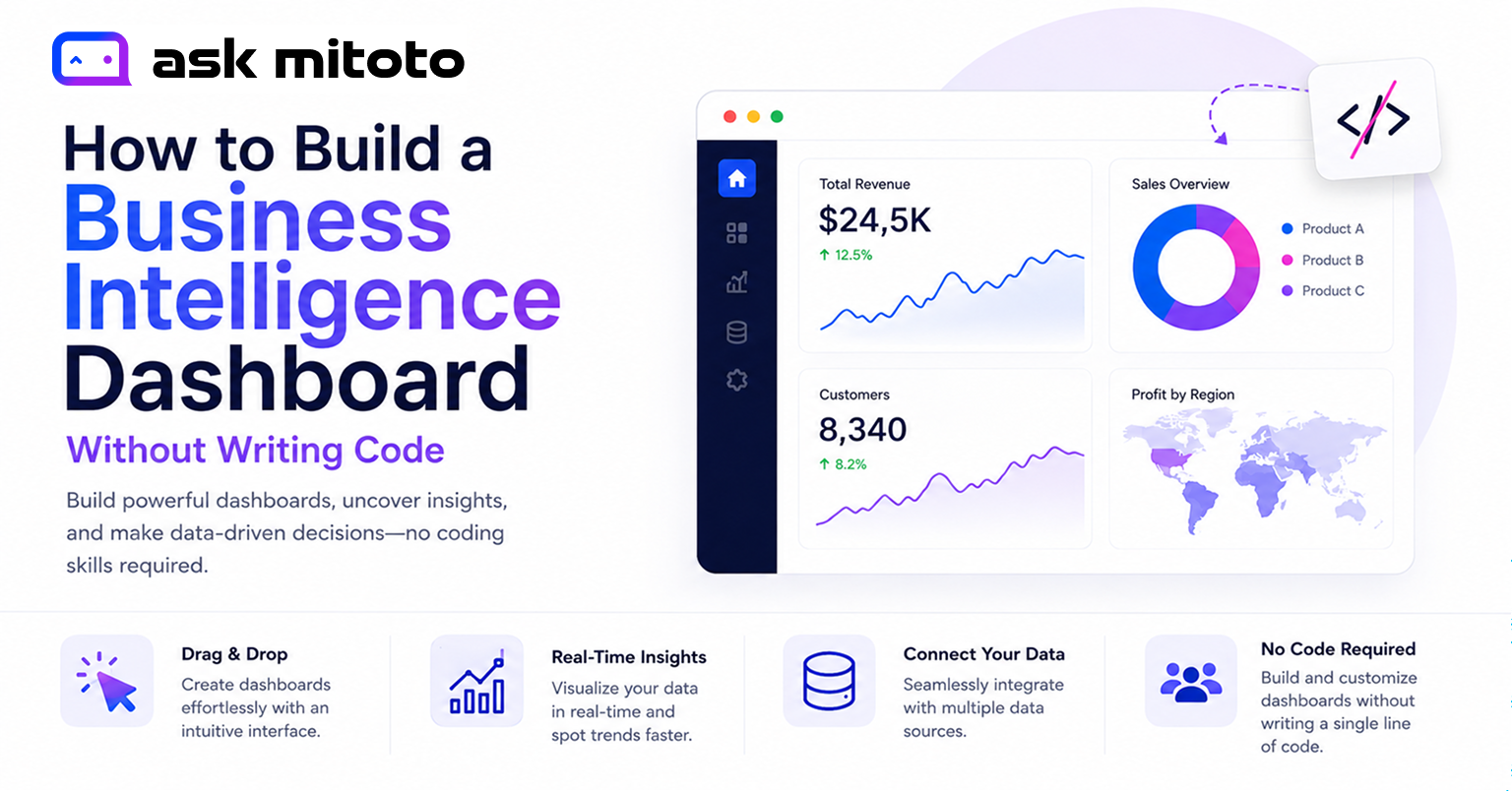
1. What Is a Business Intelligence Dashboard (and How Does It Work)?
A business intelligence (BI) dashboard is a visual interface that aggregates, displays, and monitors key business metrics in one place. Think of it as your company’s real-time control panel – showing sales figures, website traffic, customer acquisition costs, inventory levels, or any other KPI your team needs to track, all updated automatically.
Traditionally, building one required a data engineer to write SQL queries, a developer to configure a BI tool like Tableau or Power BI, and ongoing maintenance every time a data structure changed. That process could take days or weeks and requires specialized technical skills most small businesses simply don’t have.
Today, AI-powered no-code platforms have eliminated that barrier. Instead of writing code, you describe what you want – in plain English – and the tool builds the dashboard for you.
Core Components of a BI Dashboard
- Data connectors – integrations with databases, CRMs, spreadsheets, APIs, and cloud storage
- Query engine – the layer that retrieves and transforms data (traditionally SQL; now handled by AI)
- Visualization engine – converts query results into charts, graphs, tables, and gauges
- Filters & drill-downs – interactive controls that let users slice data by date, segment, region, etc.
- Refresh schedule – determines how frequently the dashboard pulls fresh data (real-time, hourly, daily)
2. Why Non-Technical Teams Are Switching to No-Code BI
The biggest bottleneck in traditional BI isn’t the data – it’s the skill gap. When a marketing manager wants to know “which campaign drove the most revenue last quarter,” they have two options: wait days for a data analyst to write a query and build a report, or use a self-service no-code tool to answer the question themselves in minutes.
That second option now exists – and it’s reshaping how businesses operate.
Companies using BI dashboards are up to 5× more likely to make faster decisions than those without them. Yet 97% of collected business data goes unanalyzed, largely because accessing it requires technical expertise most teams lack.
Sources: WeWeb BI Dashboard Guide, 2025
Key Reasons Businesses Choose No-Code BI
- Speed to insight – go from question to chart in under 10 minutes, not 10 days
- Lower cost – no need to hire a dedicated data analyst (median salary: $75,703/year in 2024)
- Reduced IT dependence – marketing, sales, HR, and finance teams build their own dashboards independently
- Business agility – update dashboards as business goals change, without filing IT tickets
- Democratized data – every department has access to the same reliable, real-time numbers
SMEs using self-service dashboards report 30% better performance metrics once spreadsheet-based reporting is replaced with real-time BI dashboards.
Source: Mordor Intelligence, Self-Service BI Market Report, 2025
3. BI Dashboard Market: Key Stats & Trends (2025)
The growth of no-code and self-service BI is not a passing trend – it’s a structural shift in how businesses consume data. Here are the numbers that tell that story.
Sources: IMARC Group (2025) · Futurism BI Statistics · Mordor Intelligence · WeWeb BI Guide, 2025
Key Trends Shaping No-Code BI in 2025
- Natural language querying goes mainstream — 20% of organizations have enabled NL querying for business users, up from near-zero in 2022
- AI-embedded BI tools — 45% of BI vendors now ship built-in AI capabilities, including auto-chart generation and anomaly detection
- Mobile-first dashboards — 55% of BI users access dashboards on mobile devices
- Multi-source analysis becomes standard — 80% of teams now pull data from multiple sources into a single dashboard
- SaaS BI is the fastest-growing segment among SMBs, driven by subscription pricing and low admin overhead
4. Step-by-Step: Build a BI Dashboard Without Coding
The following process works for any no-code AI BI tool and is illustrated specifically with Ask Mitoto — a platform purpose-built for non-technical business users.
1. Define Your Business Question
Before touching any tool, decide what decision you want to make. Good dashboards answer specific questions: “Is revenue growing month-over-month?” or “Which marketing channel has the lowest customer acquisition cost?” Vague dashboards are noise; focused dashboards drive action.
2. Choose and Sign Up for a No-Code BI Tool
Select a platform that matches your data sources and technical comfort level. Ask Mitoto, for instance, supports databases, spreadsheets, PDFs, and APIs — with AI handling everything from query generation to chart selection. No credit card required to start.
3. Connect Your Data Source
Upload a CSV or Excel file, connect a Google Sheet, or provide database credentials. AI-powered tools like Ask Mitoto establish encrypted, real-time connections without copying your data to external servers. See Section 5 for a full breakdown of data source types.
4. Describe What You Want to See
Type your request in plain English. For example: “Show me monthly revenue by product category as a bar chart, with a line overlay for last year’s comparison.” Ask Mitoto’s AI to interpret your intent, write the underlying SQL or query logic, and render the chart automatically.
5. Arrange and Customize Your Dashboard
Drag and drop charts, tables, and KPI cards onto the dashboard canvas. Resize panels, apply date filters, and adjust color themes to match your brand. No coding is required at any step.
6. Set Up Automatic Data Refresh
Configure how often the dashboard pulls fresh data — real-time for operational metrics, daily for reporting dashboards, weekly for executive summaries. Real-time dashboards are critical for logistics, support, and sales operations.
7. Share and Collaborate
Publish your dashboard with role-based access controls. Share view-only links with stakeholders, embed dashboards into your internal portals or Notion pages, or schedule automated email reports. Ask Mitoto’s permission system ensures each team member sees only the data they’re authorized to access.
5. How to Connect Data Sources to a No-Code Dashboard
Connecting data is the foundational step. Most businesses have data scattered across multiple systems — a CRM, a spreadsheet, a database, a marketing platform. A strong no-code BI tool consolidates all of these into one unified workspace.
| Data Source Type | Examples | Supported by Ask Mitoto | Setup Complexity |
| Spreadsheets & Files | Excel, CSV, Google Sheets | ✓ Yes | Very Low — upload or link |
| Relational Databases | MySQL, PostgreSQL, SQLite | ✓ Yes | Low — credentials only |
| Cloud Data Warehouses | BigQuery, Snowflake, Redshift | ✓ Yes | Low-Medium |
| Documents | PDF reports, Word files | ✓ Yes (Document Intelligence) | Very Low — drag & drop |
| APIs / SaaS Tools | Salesforce, HubSpot, Stripe | ✓ Via integrations | Medium |
| Marketing Platforms | Google Analytics, Facebook Ads | ✓ Via connectors | Low |
Data Security: What You Must Know Before Connecting
Before connecting business-critical data to any BI platform, verify its security posture. Ask Mitoto, for instance, never stores or copies your database data. All queries are processed in real-time with encrypted connections, and users retain complete control over access permissions. This architecture is increasingly important as data privacy regulations (GDPR, CCPA, PDPA) impose strict requirements on data residency and processing.
- Look for end-to-end encryption (TLS in transit, AES-256 at rest)
- Confirm the platform does not retain raw query results on shared servers
- Ensure role-based access controls (RBAC) are available at row or column level
- Check for SOC 2 or ISO 27001 compliance certifications
6. How to Create a KPI Dashboard Without Coding
A KPI (Key Performance Indicator) dashboard is the most common type of business dashboard. It displays a curated set of metrics — typically 5–10 — that indicate whether a business, team, or campaign is on track toward its goals.
Step 1: Define the Right KPIs for Your Use Case
| Business Function | Common KPIs to Track |
| Sales | Monthly Recurring Revenue (MRR), Win Rate, Average Deal Size, Pipeline Value, Churn Rate |
| Marketing | Cost Per Lead (CPL), Conversion Rate, ROAS, Website Sessions, Email Open Rate |
| Operations | Order Fulfillment Time, SLA Compliance, Defect Rate, Cost Per Unit, On-Time Delivery |
| Finance | Gross Margin, Cash Burn Rate, Accounts Receivable Aging, Budget Variance, Revenue Growth |
| Customer Success | NPS Score, CSAT, Ticket Resolution Time, Customer Lifetime Value (CLV), Churn Rate |
| HR & People Ops | Time to Hire, Employee Turnover Rate, Engagement Score, Training Completion, Headcount |
Step 2: Use Natural Language to Build Each Visual
Once KPIs are defined, building each visualization in Ask Mitoto requires only a plain-English prompt. Examples:
- “Show this month’s MRR compared to last month as a KPI card with percentage change.”
- “Create a bar chart of leads by source for the past 90 days.”
- “Build a line graph of weekly churn rate over the past 12 months.”
- “Display a table of the top 10 customers by revenue this quarter.”
The AI interprets these prompts, selects the appropriate visualization type, generates the underlying data query, and renders the result — instantly.
Step 3: Add Filters and Time-Range Controls
Interactive filters let dashboard viewers slice data without requesting new reports. Common filters include date range selectors, region or territory dropdowns, product category filters, and rep or team selectors. These turn a static report into a self-service exploration tool.
7. What Makes an AI-Powered BI Tool Different?
Not all no-code dashboards are created equal. Traditional drag-and-drop tools (like early Tableau Public or Google Data Studio) require users to understand data structure, choose chart types manually, and configure query filters themselves. AI-powered BI tools go significantly further.
Over 80% of businesses report adopting some form of AI, and 45% of BI vendors now ship embedded AI capabilities. Natural language processing in analytics is projected to grow from $18.9 billion in 2023 to $68.1 billion by 2028 — making AI-native BI tools the new standard, not a premium feature.
Sources: WeWeb BI Guide · Querio.ai NLP Analytics Report
Ask Mitoto’s AI Dashboard Builder: How It Works
Ask Mitoto combines three AI-powered modules into one platform, designed specifically for non-technical business users:
- AI Dashboard Builder — describe what you want to visualize, and the platform creates interactive charts and dashboards from natural language inputs, with zero manual configuration.
- Smart Query Assistant — type business questions in plain English. Ask Mitoto generates precise SQL queries, fetches results, and visualizes insights from connected databases automatically.
- Document Intelligence — upload PDFs, Word files, or spreadsheets and ask questions about their contents. The AI extracts key details, summaries, and answers instantly.
Crucially, Ask Mitoto never stores or copies your underlying database data. All queries are processed in real-time using encrypted connections, with complete user control — a meaningful differentiator for businesses handling sensitive or regulated data.
8. No-Code BI Tool Comparison: Ask Mitoto vs. Alternatives
The no-code BI market has expanded rapidly. Here’s how leading platforms compare across the dimensions that matter most to non-technical users.
| Feature | Ask Mitoto | Power BI | Looker Studio | Tableau Public |
| Natural language querying | ✓ Core feature | Limited (Copilot add-on) | ✗ Not available | ✗ Not available |
| No SQL required | ✓ Fully no-code | Partial (DAX required for complex) | Partial | ✗ VizQL required |
| Setup time for a non-technical user | Minutes | Hours–Days | 1–2 Hours | Hours |
| Document / PDF analysis | ✓ Built-in | ✗ | ✗ | ✗ |
| Real-time data processing | ✓ Yes | ✓ Yes | ✓ Yes | Limited (manual refresh) |
| Data privacy (no raw data stored) | ✓ Confirmed | Cloud-stored by default | Cloud-stored by default | Cloud-stored by default |
| Best suited for | Non-technical SMBs | Enterprise, Excel users | Google Workspace teams | Data-literate analysts |
| Custom LLM integration | ✓ Yes | ✗ | ✗ | ✗ |
For non-technical business users — especially at small-to-medium businesses — Ask Mitoto’s full-stack AI approach (natural language + auto-SQL + document intelligence + real-time data) removes every technical barrier that traditional BI tools retain.
9. Business Dashboard Examples for Small Business & Marketing Teams
Here are real-world dashboard examples tailored to specific business roles — each buildable in Ask Mitoto using only plain-English descriptions.
Example 1: Marketing Performance Dashboard
- Monthly website traffic by channel (organic, paid, social, direct)
- Lead generation by campaign with cost-per-lead comparison
- Email marketing open rate, click-through rate, and conversion rate over 90 days
- ROAS (Return on Ad Spend) by platform: Google vs. Meta vs. LinkedIn
- Top-10 blog posts by organic traffic and lead conversion
Prompt example: “Build a marketing performance dashboard using my Google Analytics and HubSpot data. Show traffic trends, lead sources, and campaign ROI for the last 90 days.”
Example 2: Sales Pipeline Dashboard
- Total pipeline value by stage (Prospecting → Qualified → Proposal → Closed)
- Monthly Recurring Revenue trend vs. target
- Win/loss ratio by sales rep and product line
- Average deal cycle length by customer segment
- Deals at risk (no activity in 14+ days)
Example 3: E-Commerce Operations Dashboard
- Daily orders, revenue, and average order value (AOV)
- Inventory levels with low-stock alerts
- Return rate by product category
- Fulfilment time and carrier performance
- Customer lifetime value (CLV) cohort analysis
Example 4: Financial Health Dashboard (SMB)
- Monthly cash flow vs. burn rate
- Revenue vs. expenses with gross margin trend
- Accounts receivable aging (30 / 60 / 90 days)
- Budget vs. actuals by department
- Revenue forecast for the next 3 months

10. Common Mistakes When Building a BI Dashboard (and How to Avoid Them)
Even with no-code tools, poorly designed dashboards fail to deliver value. A research review of 100 dashboards found that 58% contained unnecessary visuals that added clutter, and 53% lacked clear labels or context. Here’s how to avoid the most common pitfalls.
| Mistake | Why It Hurts | How to Fix It |
| Tracking too many metrics | Cognitive overload; nobody knows what to act on | Limit to 5–10 KPIs per dashboard; create separate dashboards by function |
| No context or benchmarks | A number without a target or trend is meaningless | Always show current vs. target and current vs. prior period |
| Stale data with no refresh schedule | Decisions made on outdated information | Set automatic data refresh at appropriate intervals (real-time, hourly, daily) |
| Wrong chart type for the data | Misleading or unreadable visualizations | Use AI chart recommendations, or follow: bars for comparison, lines for trends, pie only for part-to-whole with <5 segments |
| No access control | Sensitive data visible to the wrong people | Configure role-based permissions before sharing; use row-level security where available |
| Not connecting all relevant sources | An incomplete picture leads to wrong conclusions | Audit all systems-of-record before building; unify sources in one platform |
